Most equipment failures are predictable. Not because teams lack information, but because there is no system to act on it consistently.
Maintenance management is how a small business turns that scattered knowledge, what breaks, what needs servicing, who is responsible, into something that holds up. That covers deciding whether a CMMS makes sense at all, understanding preventive versus corrective work, building a schedule, and tracking whether the effort is actually paying off.
For teams already working in Google Sheets, none of this requires new software to get started. It requires the right structure.
Do You Need a CMMS?
Not every maintenance operation needs dedicated software right away. A shared checklist can work fine for a small, stable set of equipment and one or two people handling the work.
The signs a team has outgrown that tend to be about repetition, not size: the same failure gets re-diagnosed because nobody wrote down what fixed it last time, preventive tasks slip without anyone noticing until something breaks, or nobody can say what has been done to a piece of equipment without asking around.
One or two of these showing up occasionally is normal. Several showing up regularly is usually the point where a defined system, whether that is a CMMS or a structured spreadsheet, starts saving more time than it costs to set up. What is a CMMS and do small businesses actually need one covers this decision in more depth.
Preventive vs Corrective Maintenance
A preventive maintenance schedule reduces the volume of corrective work. It does not eliminate it entirely. Some failures are unpredictable. But most are not.
Teams that run structured preventive schedules typically see fewer emergency breakdowns, more predictable maintenance spend, better technician workload distribution, and longer asset lifespan.
The difference between a team that manages maintenance well and one that is always reacting is usually not budget or headcount. It is whether planned work happens before unplanned work forces it.
Building a Preventive Maintenance Schedule
A preventive maintenance schedule is a planned list of maintenance tasks for each asset, organized by frequency and assigned to responsible team members. It defines what needs to be done, how often, and who is accountable, before a failure happens, not after.
For a full walkthrough of building a preventive maintenance schedule in Google Sheets, see how to build a preventive maintenance schedule in Google Sheets.
Maintenance KPIs Worth Tracking
A few numbers show whether a maintenance program is actually working, rather than just existing on paper:
- PM compliance rate. The percentage of scheduled preventive tasks completed on time.
- Mean time to repair (MTTR). How long a corrective task takes from report to resolution, on average.
- Unplanned downtime. Time lost to failures that were not scheduled, the clearest single signal of whether preventive work is paying off.
These three are worth tracking first. Maintenance management KPIs every operations manager should track covers the full set and how to measure them from a Google Sheets-based system.
How Fixeets Fits
Google Sheets already handles the day-to-day for most small maintenance teams: it is accessible, collaborative, and requires no new login. What a plain spreadsheet is missing is structure, reminders that fire on their own, a schedule that does not depend on someone checking a tab, and a real history per asset.
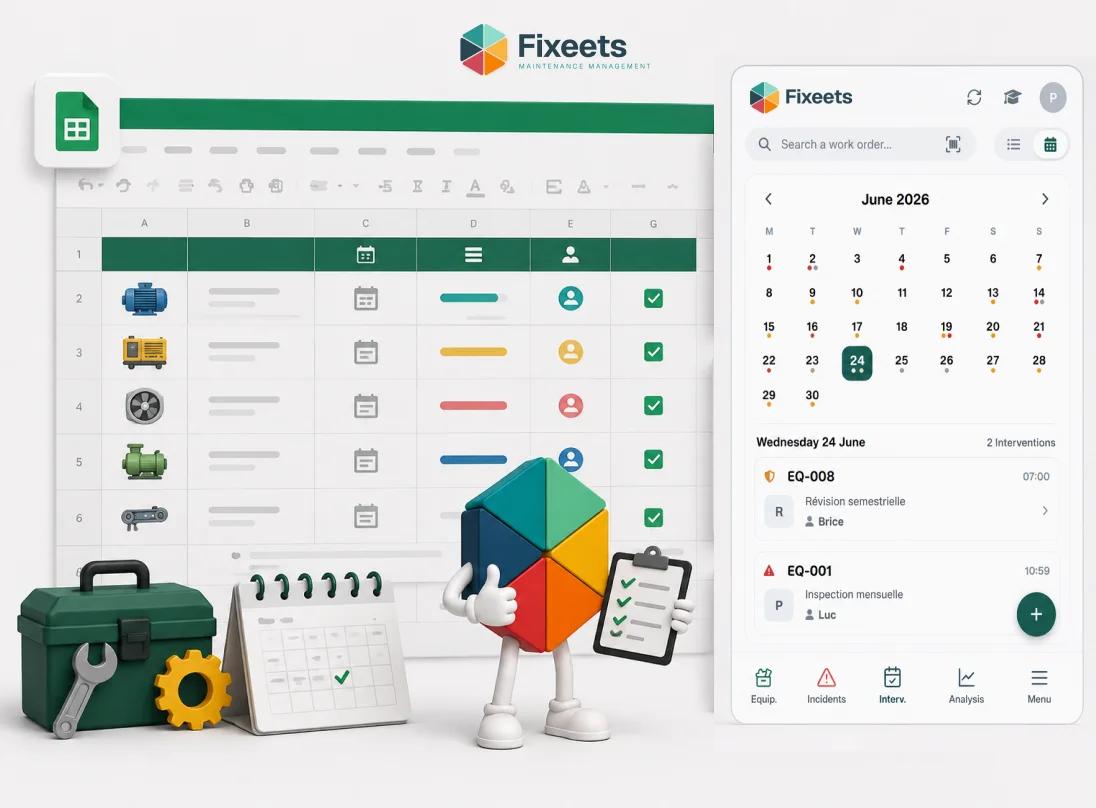
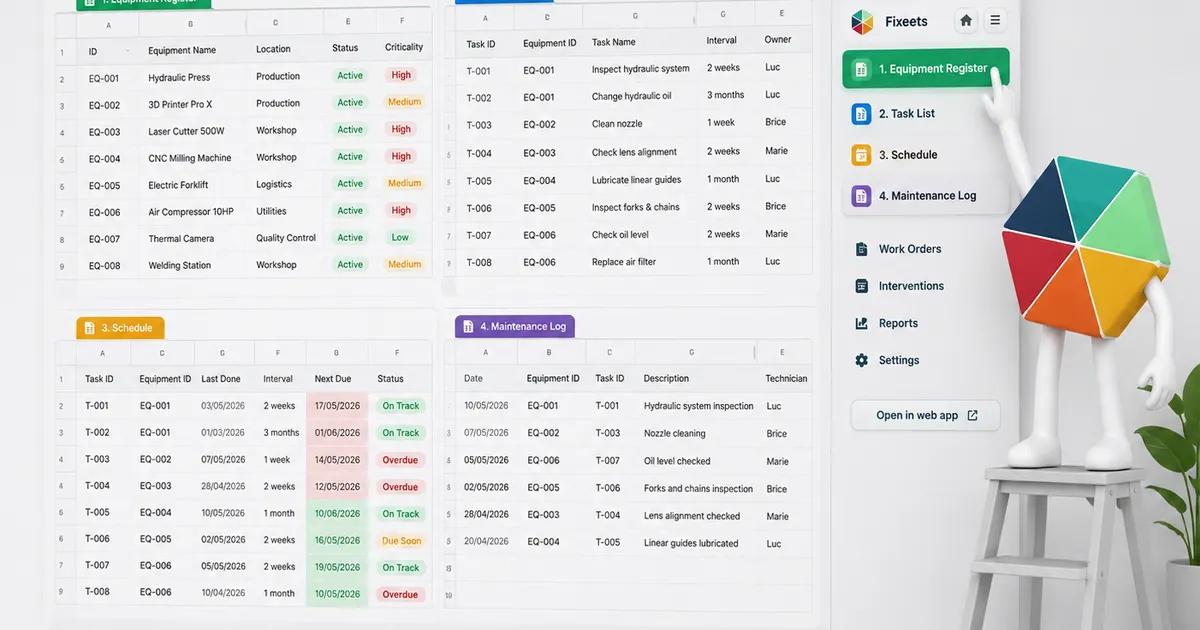
Fixeets Maintenance adds that structure directly inside Google Sheets: work orders, preventive schedules, and a maintenance log, without asking the team to leave the tool they already use. When you are ready to compare options, Fixeets pricing is designed for teams that need operational structure without enterprise software costs.
For an evergreen reference that goes deeper on every part of this, preventive strategy, CMMS selection, and day-to-day running, see our complete guide to maintenance management.
Key Takeaways
- Not every team needs a CMMS immediately. Recurring friction, not size, is the real signal to watch for
- Preventive maintenance is planned and proactive; corrective maintenance responds to failures that already happened. Most operations need both
- A preventive maintenance schedule defines what needs to be done, how often, and who is responsible, before failures happen
- PM compliance rate and unplanned downtime are the two KPIs worth tracking first
- Google Sheets can run all of this without new software. Fixeets adds the structure a plain spreadsheet is missing
FAQ
What is maintenance management? Maintenance management is the practice of tracking assets, scheduling recurring upkeep, and logging completed work so equipment problems get caught and handled before they cause downtime.
Do I need a CMMS for my small business? Not necessarily right away. A shared checklist can work for a small, stable set of equipment. It is usually time to consider a CMMS once tasks are slipping unnoticed, history lives only in people's memory, or more than one or two people are involved in maintenance work.
What is the difference between preventive and corrective maintenance? Preventive maintenance is planned and carried out before a failure happens, on a set time or usage interval. Corrective maintenance is the work logged after something has already failed. Most operations need both.
Can I manage maintenance in Google Sheets without dedicated software? Yes, for a small, stable asset list. A well-structured sheet can track an asset register, task list, schedule, and completion log. The limits show up as reminders, mobile access, and history-building start requiring more manual effort than the team has time for.
What maintenance KPIs should a small team track first? PM compliance rate and unplanned downtime give the clearest early signal. Mean time to repair is worth adding once there is a few months of history to compare against.
How much does a CMMS cost? Dedicated CMMS software typically runs $20 to $50 per user per month, and per-user pricing can add up quickly once every technician is counted. Fixeets runs inside Google Sheets on a flat-rate model instead. The Standard plan is free with no time limit, covering up to 30 interventions a month. The Enterprise plan is $34.99/month outside Europe or €29.99/month within Europe, with no per-seat cost.
Does Fixeets replace Google Sheets for maintenance? No. Fixeets adds work orders, preventive schedules, and a maintenance log directly inside Google Sheets, so the day-to-day work still happens in the spreadsheet the team already uses.
What is the first step to building a preventive maintenance schedule? Start with your most critical assets, the equipment that would stop operations if it failed, and define their most important recurring tasks first. How to build a preventive maintenance schedule in Google Sheets covers the full setup.